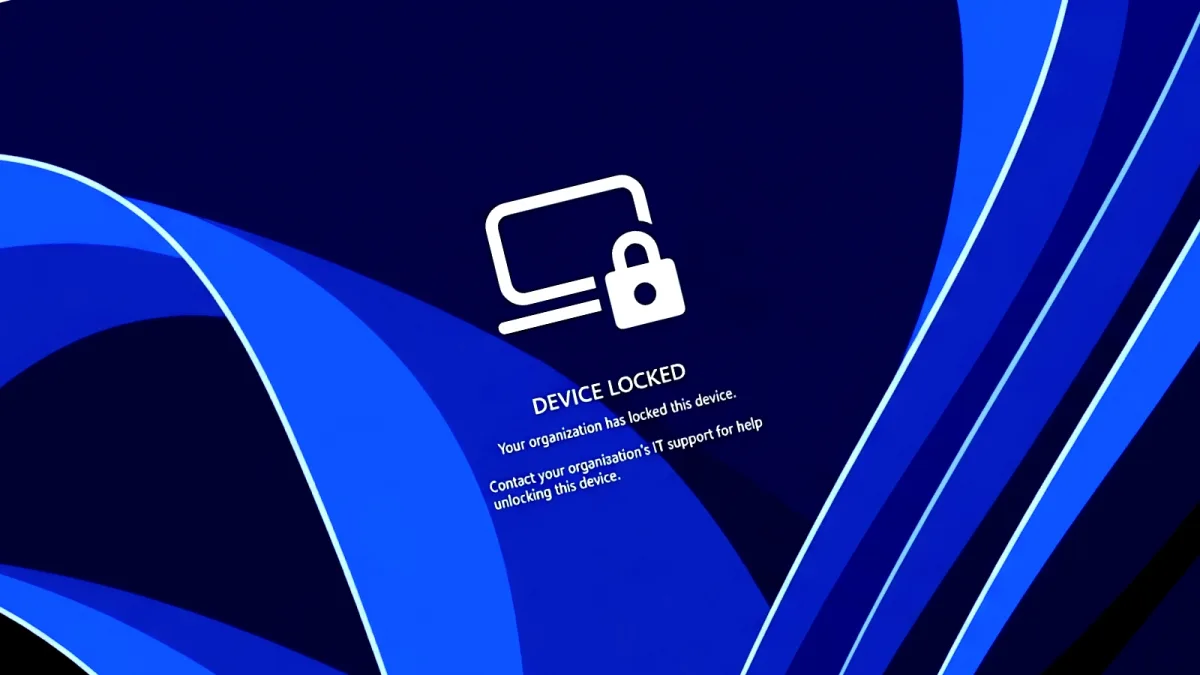
Microsoft is piloting Remote Lock, a capability designed to give enterprise IT administrators the ability to remotely secure Windows devices that have been lost or stolen without triggering a factory reset. The feature is now available in Windows 11 Insider Preview builds distributed through the Beta (Build 26320.10003) and Experimental (Build 26340.10013) channels.
Using Microsoft Intune custom configuration profiles, administrators can apply Remote Lock to Microsoft Entra-joined, hybrid-joined, or MDM-enrolled systems running Windows Enterprise, Education, or Pro editions. Once a device receives a remote lock command from the IT department, it becomes accessible only through Intune; standard authentication methods including PINs, passwords, local administrator accounts, and web-based sign-ins cease to function. The user's credentials remain active for signing into other unaffected devices.
Windows signs out every active session, hides all sign-in options and shows a locked screen. Nothing is erased: the device stays enrolled and managed, BitLocker stays on and user data stays in place. The lock holds across restarts and while offline, and only an admin can lift it remotely, so the user picks up where they left off.
Stephen Lines, Windows Insider communications lead
How to Deploy Remote Lock via Intune
- Navigate to Devices > Windows > Configuration > Create > New policy. Select Windows 10 and later, then Templates > Custom.
- Assign a name to the profile (such as Remote lock - ON) and enter the required settings with LockState = 1.
- Assign the profile to a device group designated for locked devices. To lock a device, move it into that group; the lock takes effect at the device's subsequent check-in.
- To unlock, establish a second profile with LockState set to 0 and assign it to an unlock group. Transfer the device from the lock group to the unlock group.
Enabling Remote Lock does not disconnect the device from the enterprise network or erase its contents. Administrators seeking to isolate or wipe a device must separately employ the device isolation and wipe capabilities available in Intune.
Organizations should note that BitLocker must remain active to safeguard data in scenarios where the device is reimaged or the storage drive is physically removed, since the Windows Recovery Environment, Safe Mode, and boot options from USB or other external media remain accessible.
Additional Security Enhancements in Testing
Alongside Remote Lock, Microsoft is evaluating advanced security key management capabilities in these Windows 11 preview builds. The new functionality enables users to individually view and manage passkeys stored on FIDO2 (Fast Identity Online 2) security keys. Administrators can establish enterprise-level configurations including mandatory user verification, minimum PIN requirements, and enterprise attestation settings.
In August, Microsoft unveiled additional privacy controls for Windows 11 that grant users granular permissions over which desktop applications can access their microphone, camera, and precise location information.