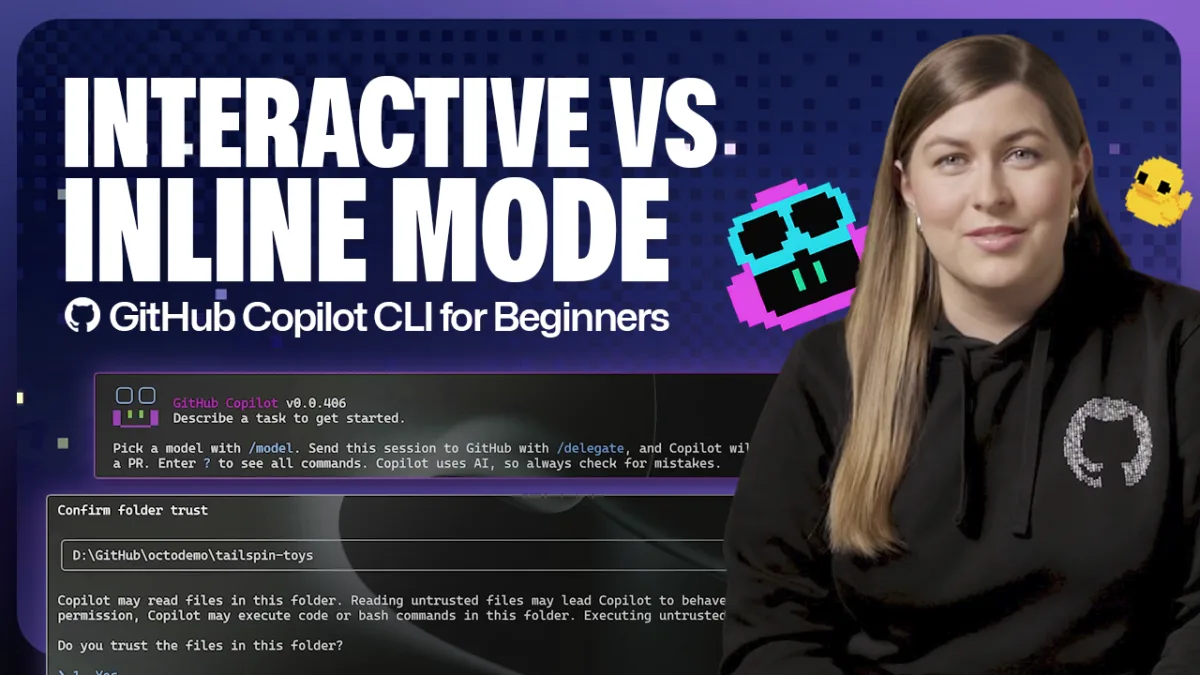
This installment in the GitHub Copilot CLI for Beginners series examines the two primary operational modes available to users. The guide walks through how to activate each mode, the specific use cases where each excels, and how to resume previous sessions.
Understanding Interactive Mode
Interactive mode delivers a conversational, session-based experience that launches by default when you invoke Copilot CLI. This mode enables you to pose a question, receive a response, and then ask follow-up questions or issue additional commands—all within a single continuous session.
The workflow in interactive mode follows these steps:
- Enter the command line and type copilot, then press Enter
- Grant Copilot permission to read and modify files in the folder when prompted
- Submit a query such as "How do I run this project locally?"
- Receive instructions from Copilot that you can execute independently or request Copilot to execute on your behalf
- Have Copilot analyze your project and perform actions like starting a server
- Review results and continue iterating with Copilot within the same session
This mode suits developers who prefer hands-on collaboration with Copilot, refining requests and building on previous responses as they work through a problem.
Understanding Non-Interactive Mode
Non-interactive mode prioritizes efficiency and immediacy. Rather than initiating a full session, you supply a single command-line prompt and receive an answer instantly, without requiring further interaction with Copilot.
This inline approach works well for isolated tasks like repository summaries, code snippet generation, or incorporating Copilot into automated processes—all without leaving your shell environment. After receiving your answer, you return directly to your terminal workflow.
To use non-interactive mode:
- Exit interactive mode if currently active and return to your regular command line
- Type copilot -p followed by your prompt, such as "Quickly summarize what this repository does and the key folders"
- Copilot examines your project files and delivers an answer
Non-interactive mode excels when you have a specific, well-defined question and need a rapid response without extended dialogue.
Resuming Previous Sessions
Copilot CLI allows you to return to earlier sessions while preserving the full conversation history and context. Within interactive mode, typing /resume displays a list of previous sessions you can select from. If you prefer to access the session picker directly from non-interactive mode, use the command copilot --resume.
This single-command approach proves particularly valuable when you already know which session you want to continue working in, eliminating the need to restart or recreate your context.
Choosing Your Mode
Both modes serve distinct purposes in your development workflow. Interactive mode handles exploratory and iterative work where you benefit from ongoing dialogue and refinement. Non-interactive mode delivers speed and focus for straightforward queries when you already understand your requirements. Selecting the appropriate mode for your task allows you to work with Copilot CLI in the manner that best suits your immediate needs.
The GitHub Copilot CLI for Beginners series will continue exploring additional topics, including Copilot CLI slash commands, using MCP servers with Copilot CLI, and more.
Source: GitHub Blog